ehRadio Controls
Physical Controls
Rotary Encoders
A rotary encoder is the recommended first choice of input. One encoder is enough to control the device.
| Encoder Action | Player Mode | Playlist Mode |
|---|---|---|
| Rotate clockwise | volume up | next station/track |
| Rotate counter-clockwise | volume down | previous station/track |
Click (Same as BTN_PLAY) |
start/stop playing | play selected station/track |
| Double-click | toggle stations/SD mode | - |
| Long-press * nothing if no display | enter/exit playlist mode | exit playlist mode to player mode |
Rotary Encoder 2
| Encoder Action | Not pressed | While Pressing |
|---|---|---|
| Rotate clockwise | switch to playlist mode & next station/track | volume up |
| Rotate counter-clockwise | switch to playlist mode & previous station/track | volume down |
Click (Same as BTN_PLAY) |
start/stop playing | - |
| Double-click | mute * nothing if no display | - |
| Long-press | enter deep sleep | - |
Buttons
Up to 6 buttons can be connected to the device. Three buttons are enough to control most functions
(BTN_PLAY and BTN_DOWN with BTN_UP or BTN_NEXT with BTN_PREV)
and four will control all (add BTN_MODE for mute and deep sleep).
Button Actions
| Button | Click | Double-click | Long-press |
|---|---|---|---|
| BTN_PLAY | start/stop playing | toggle stations/SD mode | toggle between player and playlist |
| BTN_DOWN | volume down | previous station/track | quick volume down |
| BTN_UP | volume up | quick next station/track | quick volume up |
| BTN_NEXT | switch to playlist (if display) / next station/track | instant next station/track | quick next |
| BTN_PREV | switch to playlist (if display) / previous station/track | instant next station/track | quick next |
| BTN_MODE | toggle stations/SD mode | mute * nothing if no display | enter deep sleep |
Turning on One-click Station Switching in the WebUI or having no display modifies the next and previous buttons. Double-click has no effect.
| Button | Click | Long-press |
|---|---|---|
| BTN_NEXT | instant next station/track | quick volume up * nothing if no display |
| BTN_PREV | instant previous station/track | quick volume down * nothing if no display |
Exit Deep Sleep
Exiting deep sleep requires a button be connected to RTC-capable pins. Read more here.
IR Receiver
IR receivers can be configured from the WebUI. Up to 3 remotes can be used.
- Go to Settings, controls, IR Recorder.
- Press the button you need on the left to record the IR code.
- Select the slot on the right and press the button on the physical IR remote. Avoid
UNKNOWN.
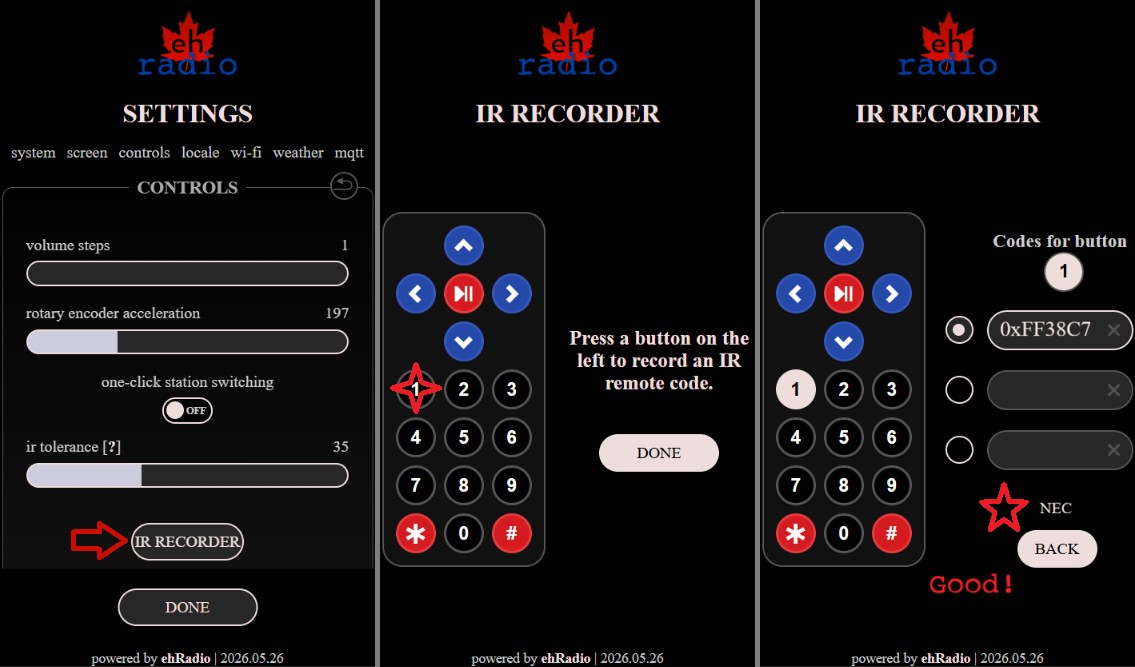
Repeat for other buttons.
| Button | Action | Longpress Action |
|---|---|---|
| ⏯ | start/stop playing | - |
| ◀ | previous station/track | - |
| ▶ | next station/track | - |
| ▲ | volume up | quick volume up |
| ▼ | volume down | quick volume down |
| # | toggle between player/playlist mode | - |
| * | toggle between stations/SD mode | - |
| 0-9 | Start entering the station number. To finish input and start playback, press the play button. To cancel, press hash. | - |
Touchscreen
Touch gestures are detected live (actions fire during swipe).
- Swipe horizontally: volume control
- Swipe vertically: station selection
- Tap: start/stop playback
- Double-tap: toggle between stations/SD mode
- Hold 5 seconds then release: enter deep sleep (wakes on next touch)
- Swipe direction locks after the initial movement; reversing within the same touch adjusts in the opposite direction on the same axis
Check options.h for tuning options (TS_STEPS, TS_SWIPE_THRESHOLD_PX, TS_COOLDOWN_MS, TS_DOUBLETAP_MS, TS_DEEPSLEEP_MS).
Home Assistant Component
A Home Assistant custom integration is available in the HA folder.
Copy ehradio and its contents into Home Assistant's custom_components folder.
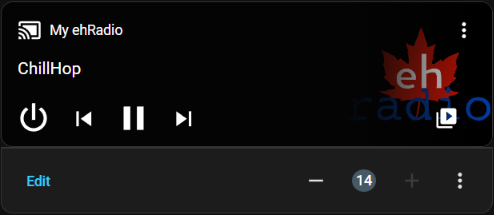
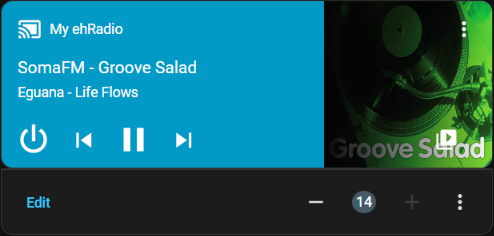
It will pull artwork when available in the stream.
MQTT must be enabled with #define MQTT_ENABLE in myoptions.h.
Add this to your configuration.yaml.
MQTT & Telnet & HTTP
ehRadio has a unified command handler that can process all of the same commands as the WebUI does.
MQTT
MQTT accepts raw text only.
Publish <mqtttopic>command (for example, ehradio/myradio/command).
| Format | Example Payload |
|---|---|
| key=value | volume=80 |
| key value | play 12 |
| key(value) | sleep(30,5) |
| Bare command | start |
| Raw URL | http://radio-url/stream |
Telnet
Connect to the radio with telnet <radio-ip>.
The format is the same as MQTT but with some quirks:
quit/byewill close the connectionhelpwill show a short list of useful commandsplaywith no value is equivalent tostartplaywith a URL is equivalent toburl/playurlmode 0radio /mode 1SD /mode 2toggle between
Connecting with Telnet will also show all serial logs.
HTTP
All commands go through GET query parameters with no POST body and no special endpoint. I haven't experimented with every way to send commands but here are some examples.
# Single command
curl "http://<radio-ip>/?stop"

# Multiple commands (processed in URL order)
curl "http://<radio-ip>/?volume=70&treble=4&bass=-2"

# Sleep timer (sleep and after are merged: "30,5")
curl "http://<radio-ip>/?sleep=30"
curl "http://<radio-ip>/?sleep=30&after=5"

# Play a station by index
curl "http://<radio-ip>/?play=3"

# Toggle play/pause
curl "http://<radio-ip>/?toggle=1"

# Reboot
curl "http://<radio-ip>/?reboot=1"
Note: the value matters - even for boolean toggles you need a value (for example ?toggle=1).
sleep and after are a special case: they're merged into sleep=for,after before dispatch.
The server responds 200 with empty body on success, 404 on unrecognized commands.
Some commands (like reset or clearspiffs) trigger a redirect to /.
For a (hopefully) complete list of commands, check out Commands.
In case this list is incomplete, commandhandler.cpp lists all commands.